
CDESK 3.2.12 introduces three main new features. The Stopwatch (CDESK Timer) module allows you to measure time worked directly whilst working – in the background, with breaks, and with the measured time converted into time spent on fulfilments. The CDESK MCP server enables connections with AI assistants such as Claude, ChatGPT and Gemini Enterprise, which can operate directly within CDESK across 8 modules and up to 64 operations. We have expanded VoIP calls via Zadarma to include a supervisor’s overview of queues and extensions, AI summarisation of recordings and a new phone directory.
Other new features in this version are primarily aimed at speeding up day-to-day work – fewer clicks, clearer lists and quicker access to the functions you use most often.
Contents of the article
- Creating fulfilments from the Discussion forum
- Settings for the default tab when opening a request
- A clearer selection of configuration objects (CIs) on a request
- View a larger quantity of records per page in the request list more quickly
- Option to select quotations based on requests
- Default task type in request templates
- Access to the visualisation of relationships directly from the list of objects (CI)
- Presentation of company and branch details from an object (CI)
- Sync IDs in the CMDB when connected to Oracle can only be edited by an administrator
- Information added regarding the creation of the object (CI)
- The link to the CI from the request will also be viewed in the CMDB
- Custom fields from the item type in the relationship visualisation
- Returning a borrowing directly from the CI panel
- Adding fulfilments to records from the central search
- Invoicing status in the list of fulfilments as a separate column
- Adding new permissions for the visibility of Warehouse documents in fulfilments
- Adding customer accounts with an additional licence to the list of assignees when recording fulfilment
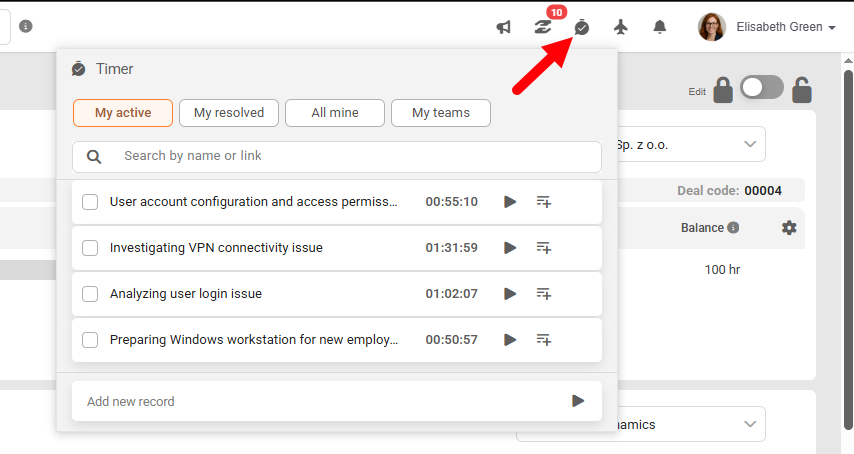
New Stopwatch module – Efficient work logging
Introducing CDESK Timer – a new module for easily tracking time worked whilst on the job.
The stopwatch can run in both the web and phone apps, from lists or individual object details. You can run this simple time measurement, which converts to task fulfilment, within requests, work orders, tasks, deals, project requests, or simply on its own, without any specific relationship.
The stopwatch runs in the background, and you can create pauses in the record. Once the work is complete, you can convert the measured time into completion time with automatically pre-filled time details and a note.
A record can exist even without a recorded time, creating a simple to-do list for quickly noting down tasks.
Licensing: CDESK Timer is part of the Fulfilments module. Organisations that do not use the Fulfilments module can also activate CDESK Timer separately as an advanced module.
Integration with AI using the CDESK MCP server
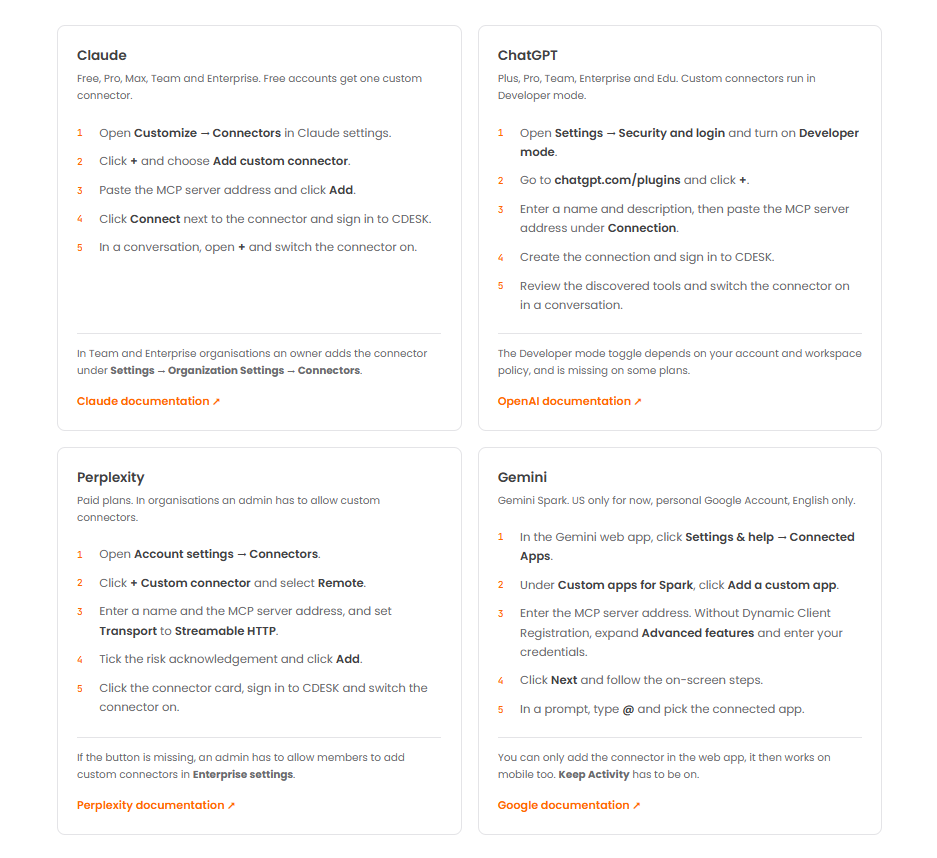
We are making the MCP server available on CDESK to enable a link with AI assistants. MCP is a standard that allows an AI assistant to operate directly within the CDESK application. It grants the assistant access to specific operations – such as searching, reading or creating a record. Claude, ChatGPT, Gemini Enterprise and other tools that support the MCP standard can connect to it.
You can connect the CDESK MCP server itself to your AI via a connector. The cloud-based MCP server is located at https://mcp.cdesk.eu, where you will also find brief instructions on how to connect it to your AI.
If you wish to run the MCP server on your own hosting service, or even customise it, the source code will be available at https://github.com/inovalogic.
The MCP server manuals will be published on the website in the ‘Documentation’ section in due course.
Notice: Connecting to unpaid AI accounts via an MCP server is strongly discouraged. Paid (commercial) versions generally include at least basic security mechanisms to protect against data leaks.
Licensing: Use of the AI assistant via the MCP server is currently free of charge; in future, you will need to enable an additional MCP licence for your CDESK account. You do not need this until at least 30 April 2027.

8 modules, up to 64 operations
The connector supports the following modules:
- Requests
- Fulfilments
- Tasks
- Companies (Address book)
- Users
- Work orders
- Configuration Management Database (CMDB) – Deals.
For each module, a list of records and the details of a specific record are available, always within the range of the logged-in user’s permissions. The names of the modules in the connector correspond to those in CDESK, so you can request them using the same names as those you are familiar with from the interface.
Improvements to VoIP calls via the Zadarma service
We introduced the ability to make calls from CDESK via Zadarma in the previous version, and based on real-world usage experience, we have incorporated numerous improvements into the current version, 3.2.12.
Overview of series and extension availability in the supervisor panel
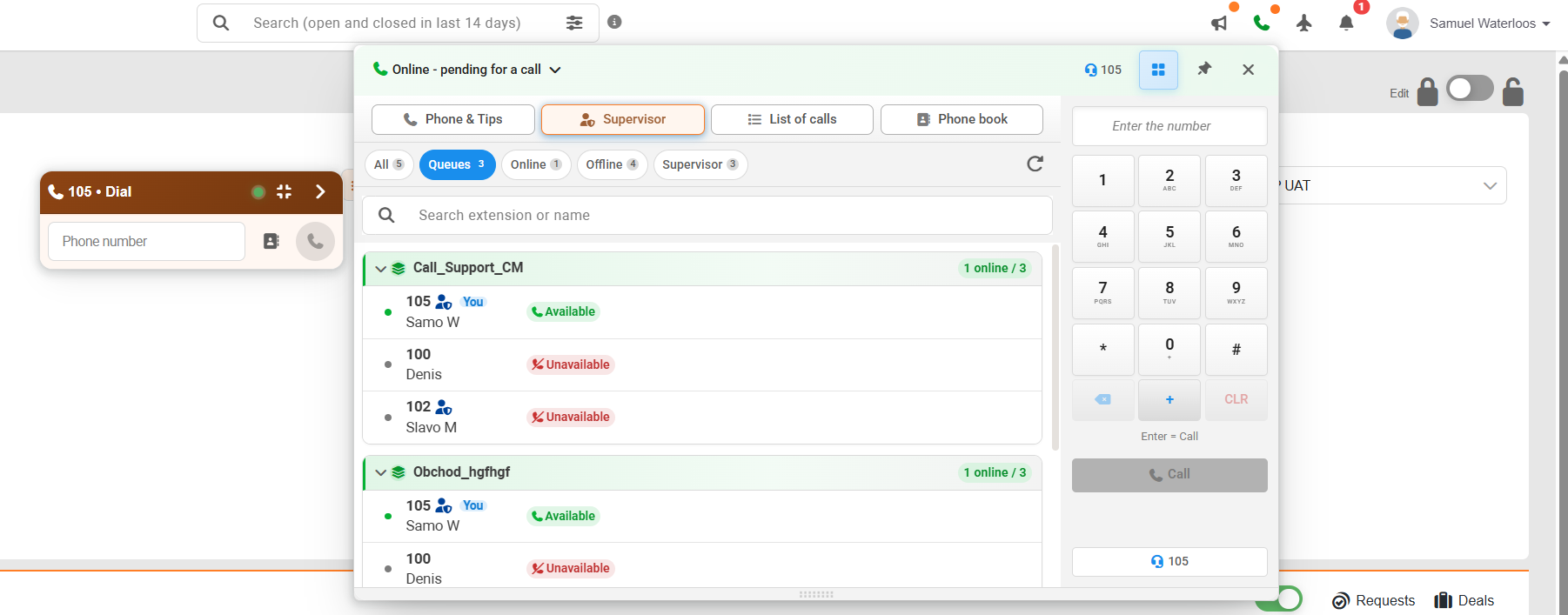
A new ‘Queues’ tab has been added to the top panel of CDESK. In this tab, the supervisor can see all the queues and, beneath each one, the extensions associated with it. Queues can be expanded or collapsed by clicking on the header, which also indicates in colour whether there is at least one associated operator in the queue or whether the entire queue is unreachable. The supervisor can see ongoing calls, join them, listen in or connect with an operator in ‘whisper’ mode.
Advanced AI transcription options
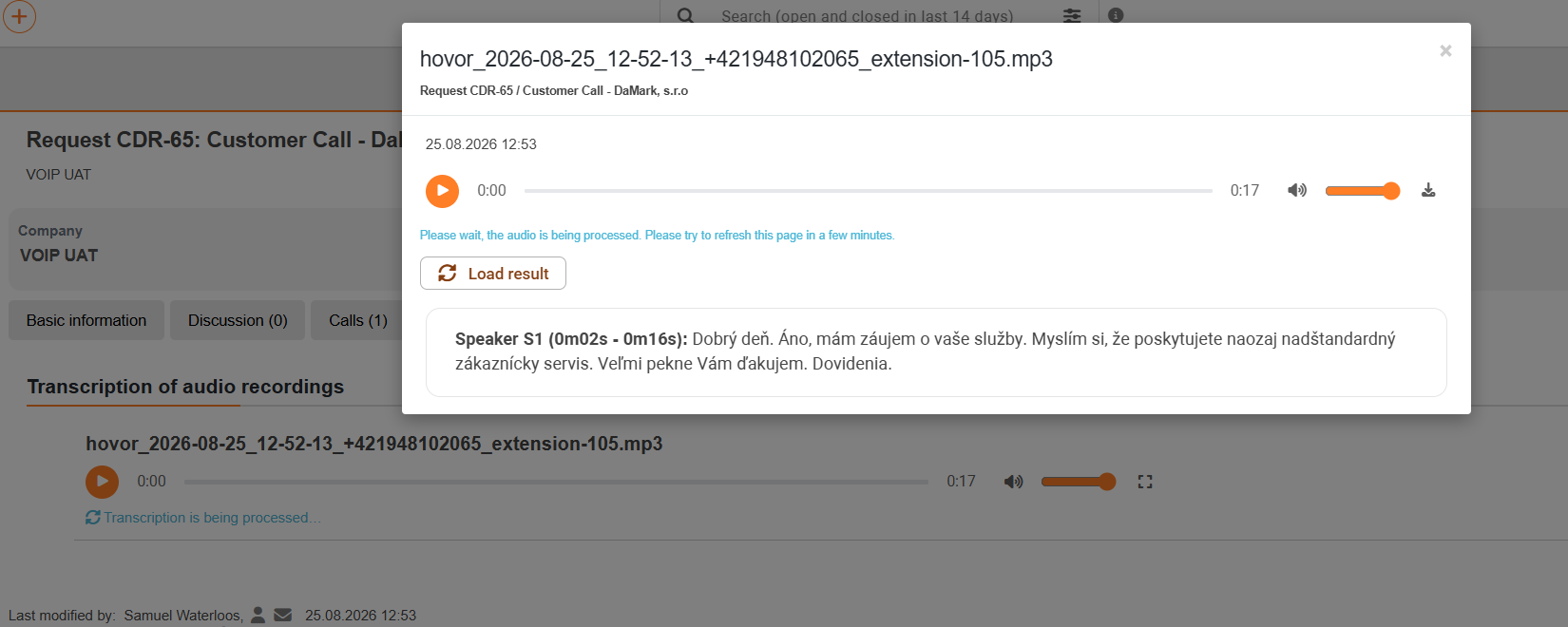
The AI audio transcription feature has been advanced to include the option of automatic AI summarisation of recordings, providing a brief summary of the content. Administrators can also use a custom dictionary to ensure more accurate recognition of technical terms and select an AI model based on the required level of accuracy or cost.
The ‚Phone Book‘ tab
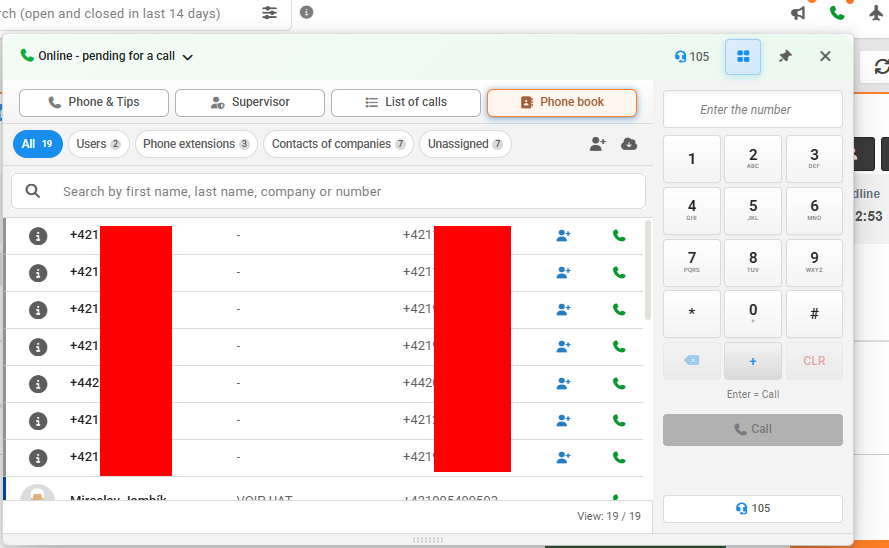
A fourth tab, ‘Phone Book’, has been added to the top VoIP panel; it serves as a single place to look up any contact and dial them.
You can search by first name, surname, company or telephone number, and the list is updated in real time as you type. Records can also be filtered by type – users, company contacts or unassigned numbers.
Requests
Creating fulfilments from the Discussion forum
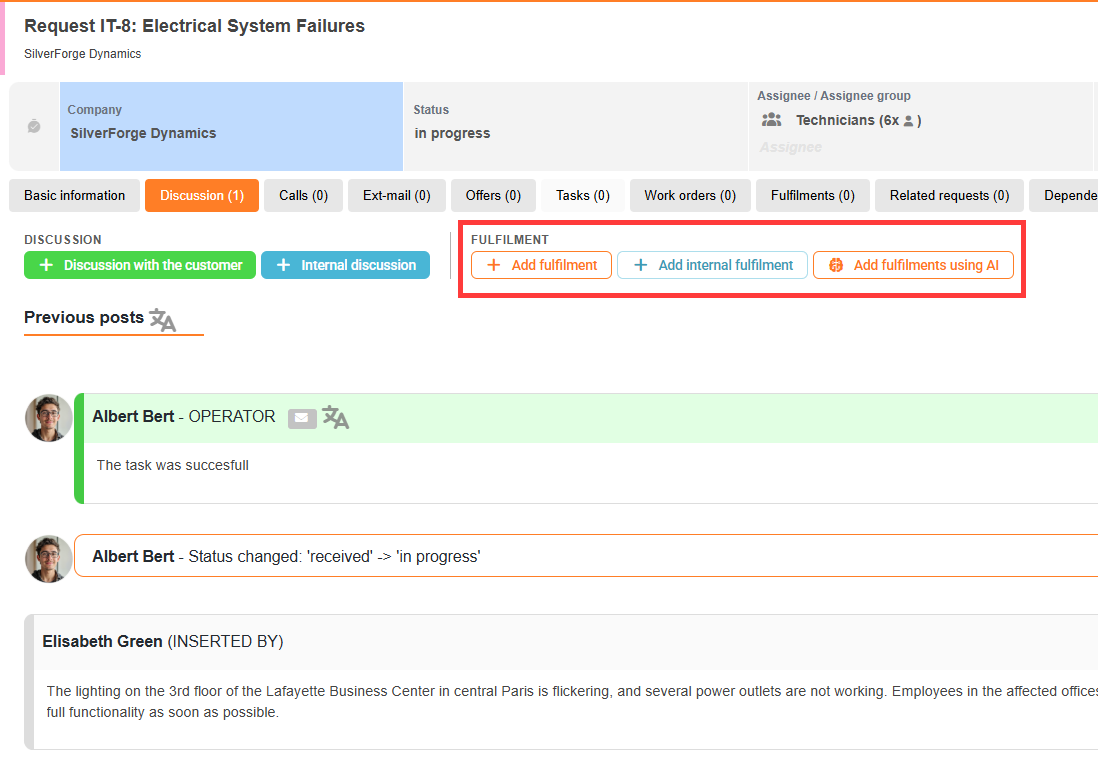
From the ‘Discussion’ tab in a request, you can now create fulfilments, thereby reducing the quantity of clicks required when recording work.
Settings for the default tab when opening a request
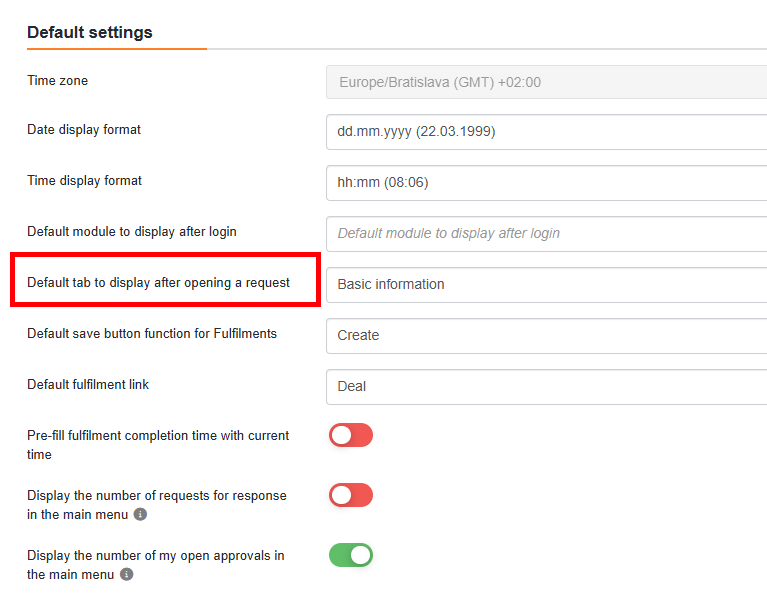
In their profile settings, users can specify which tab is viewed when any request is opened, such as Discussion, Tasks, Fulfilments… The primary purpose of these settings is to select the ‘Discussion’ tab, as when working with requests on a common basis, once you have completed a completion entry, in many cases you can handle the entire request from the ‘Discussion’ tab. You can edit the basic details in the infobox, the request entry is in the first post, you can view existing fulfilments within the discussion, and you can complete the request using the green button on the side. This further reduces the quantity of clicks required to process a request.
A clearer selection of objects (CI) on a request
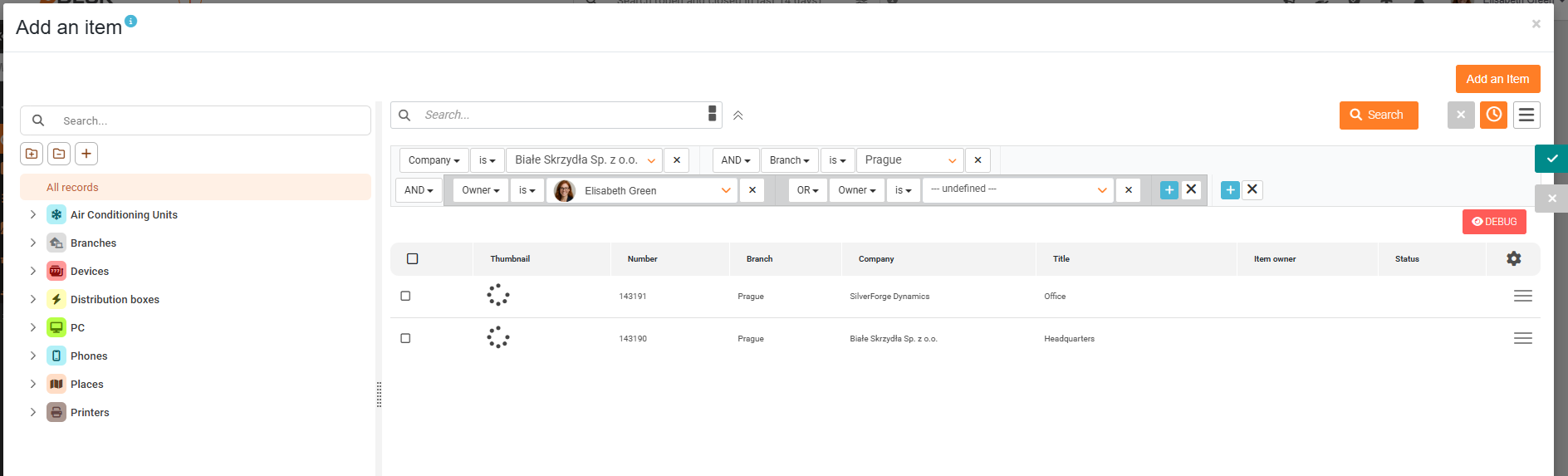
The modal window in which you add a configuration item to a request now includes an option to customise the columns. At the same time, the window for selecting linked CIs has been expanded to full screen, which improves clarity when working with larger databases.
View a larger quantity of records per page in the request list more quickly
We have resolved the issue of the requirements list taking a long time to load. In previous versions, if you selected more than 50 records per page in the request list, the loading speed of the list slowed down significantly; with a higher quantity of records (150+), the page might even freeze. We have redesigned the way the list is displayed; this means that content is skipped when scrolling quickly, but is loaded rapidly once you stop scrolling.
Option to select quotations based on requests
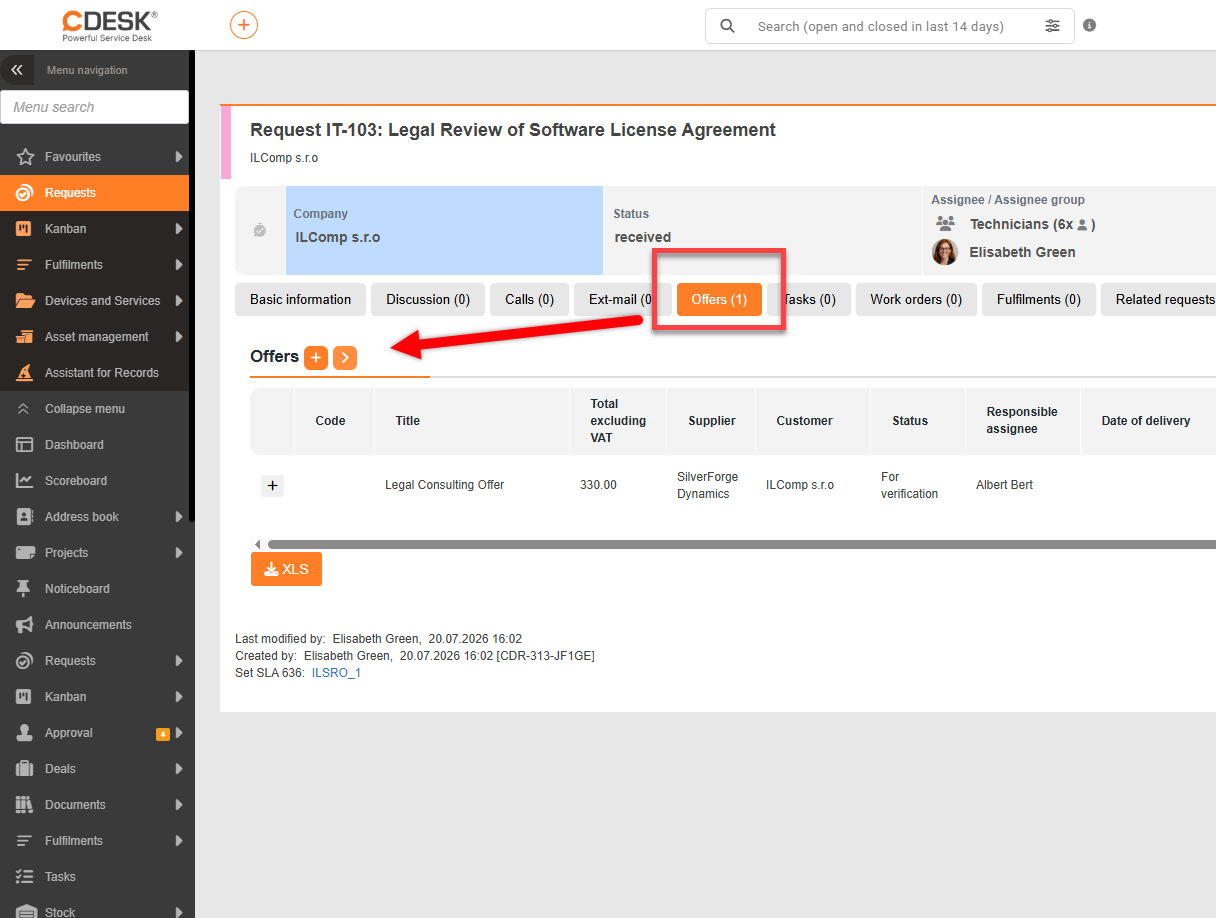
Until now, it was possible to create offers for the company specified in the request; however, linking an offer to the request could only be done from the offer details. From version 3.2.12 onwards, it is possible to link existing quotations associated with the current company to a request directly from the request itself.
Default task type in request templates
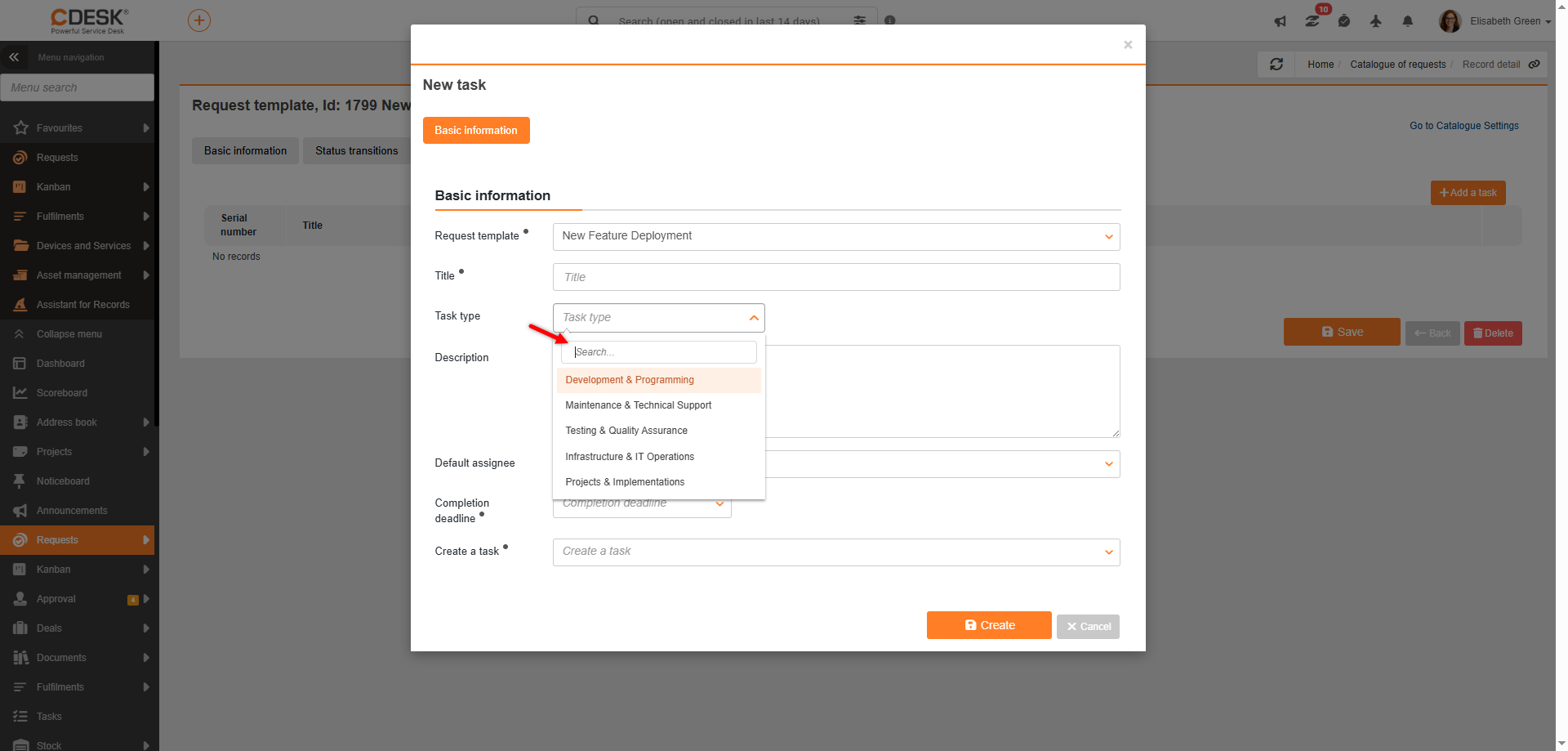
It is now possible to set a default task type on request and task templates. When creating a task from a template, the selected type is automatically pre-filled. For the task type to be selectable, the option to specify task types must be enabled in the global Task settings.
Catalogue of requests
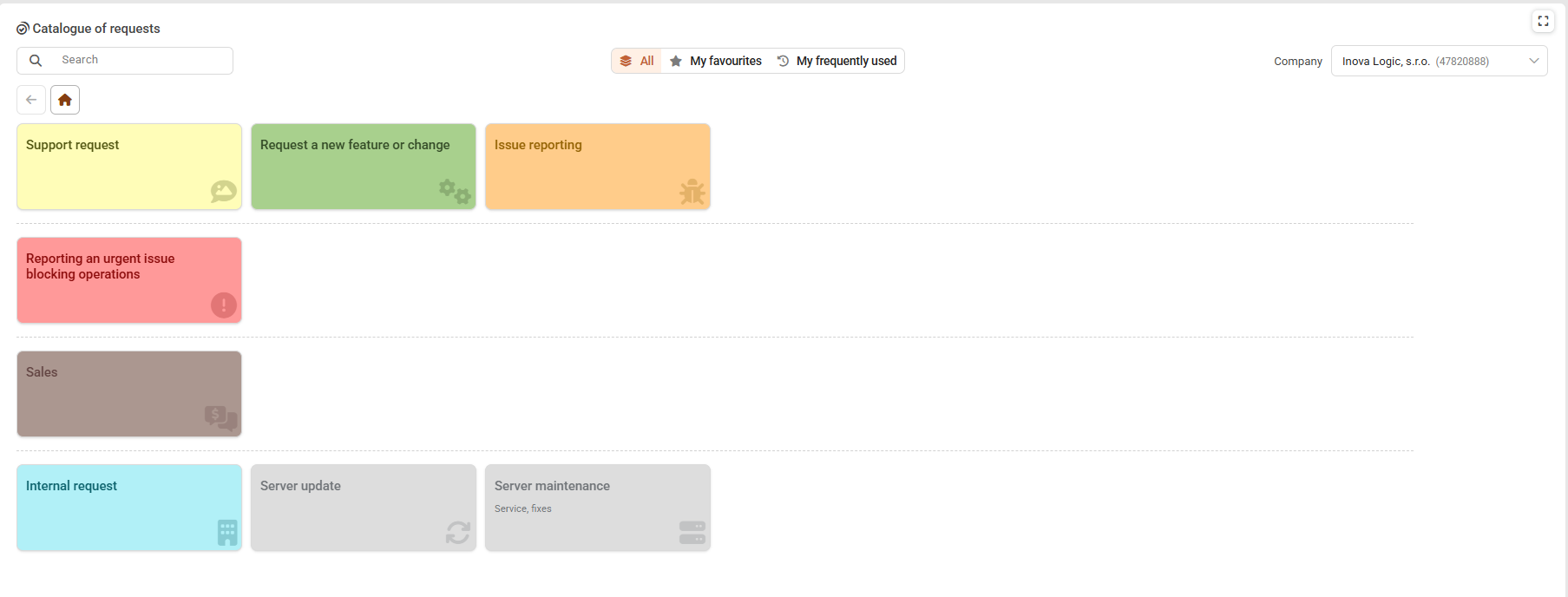
New design for the catalogue of requests
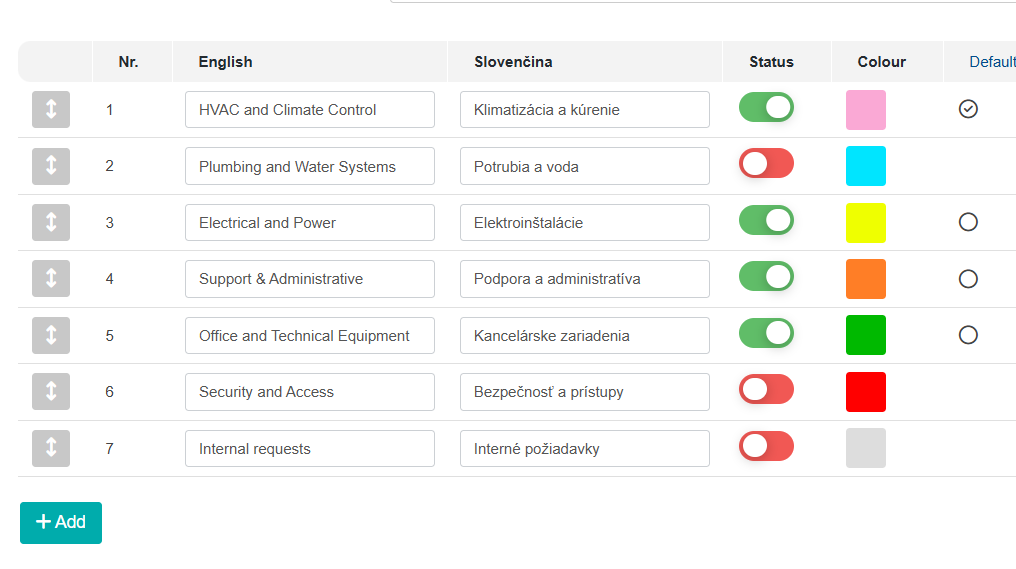
We have updated the design of the Catalogue of requests to make it quicker and easier to work with. Users can select their favourite tiles, which they can then filter out whilst working. They can also view their most recently used tiles or switch between schemes for different companies.
More streamlined administration of the catalogue of requests tree
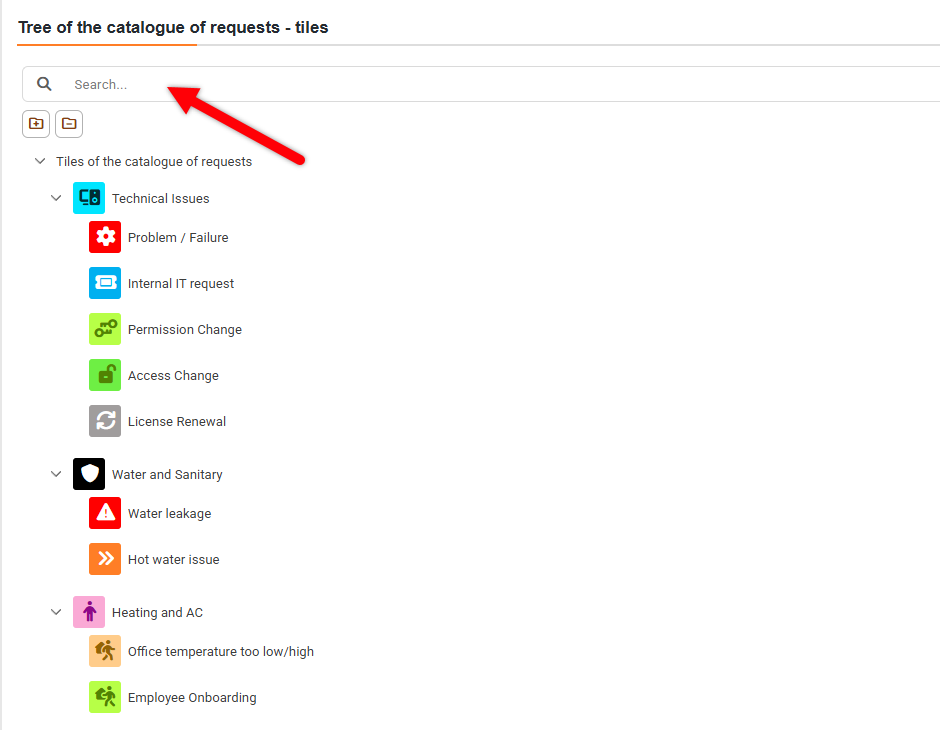
When configuring requirement templates, the administrator now has a new option – to search for a tile by name. The tile being searched for is displayed alongside its parent tiles, allowing the administrator to see where a specific item is located in the catalogue of requests.
Warning: This feature must be enabled in Global Settings.
Projects
Real-time saving of changes to the Gantt chart
The gantt chart now automatically saves all changes made without the need for manual confirmation. This new way of working includes immediate feedback confirming successful saving, a history of changes made during the current session, and the ability to undo changes step by step using the Undo function. The result is faster, more convenient and more secure project planning.
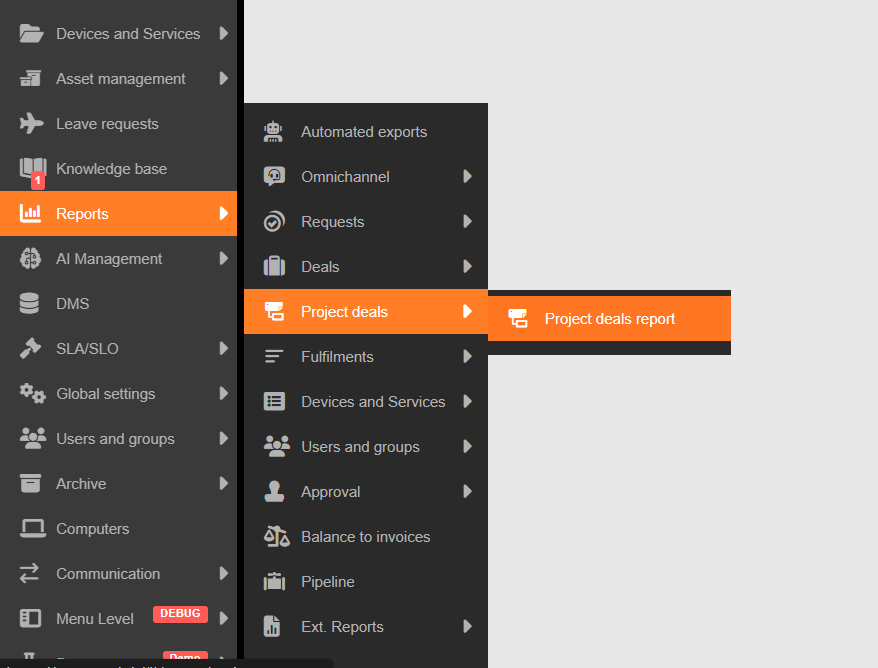
New management report on project deals
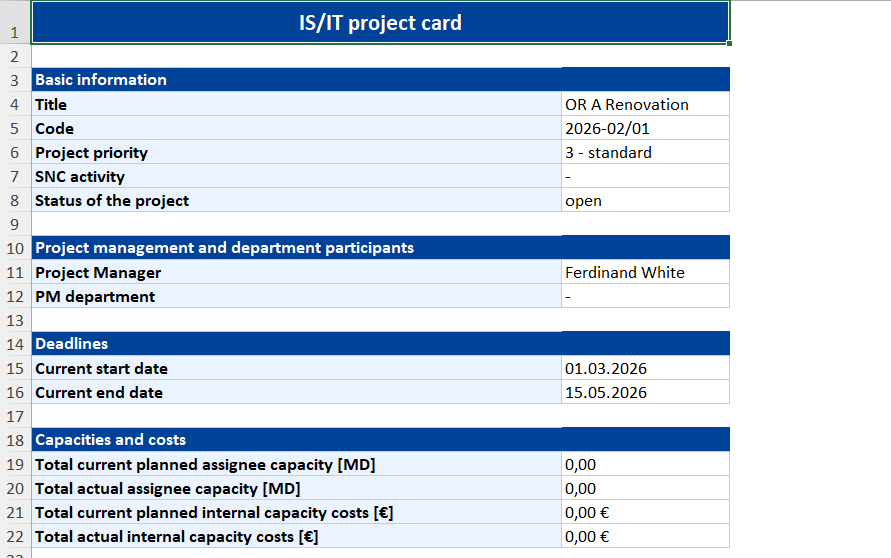
Project deals can be exported to a clear XLSX report which summarises the project status, planned and actual capacity utilisation, internal costs, project evaluations and resource utilisation. The report supports a multilingual environment, takes into account the hierarchy of project deals and views data aggregated across the entire project. The export includes several worksheets (Resources, Project Total, Plan, etc.). The aim is to provide an overview of dates, planned milestones, real and estimated costs, and key data.
Faster creation of project order reports
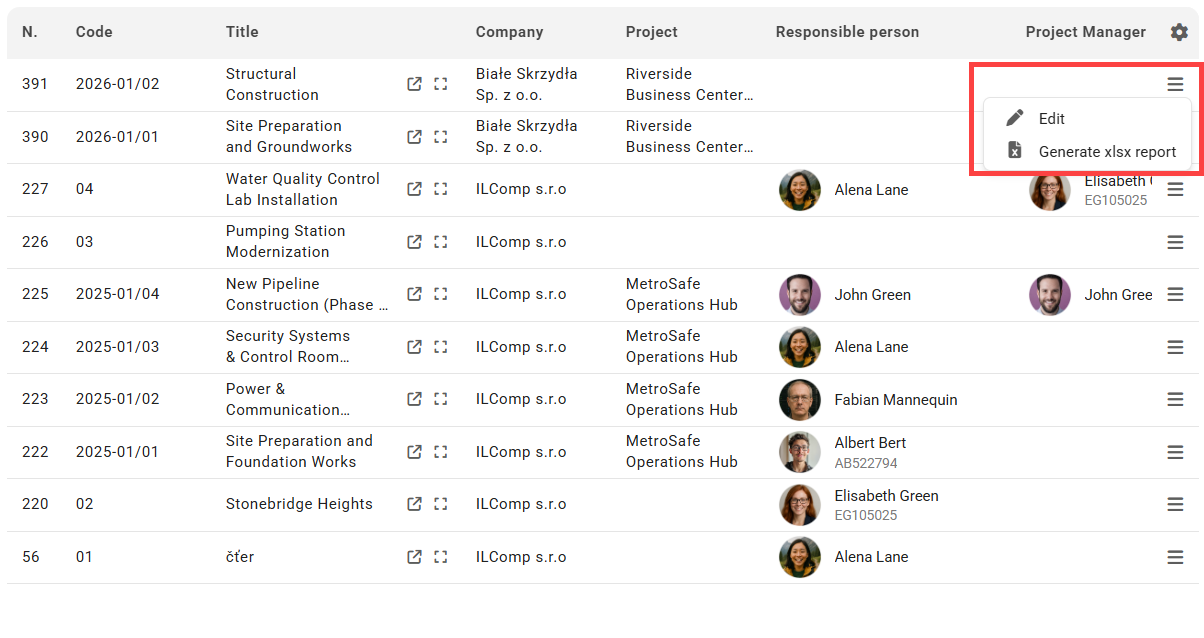
A report can be generated directly from the list of project deals – via the hamburger menu. The list of project deals provides a hierarchical view of deals, which also displays nested deals.
Configuration Management Database – CMDB
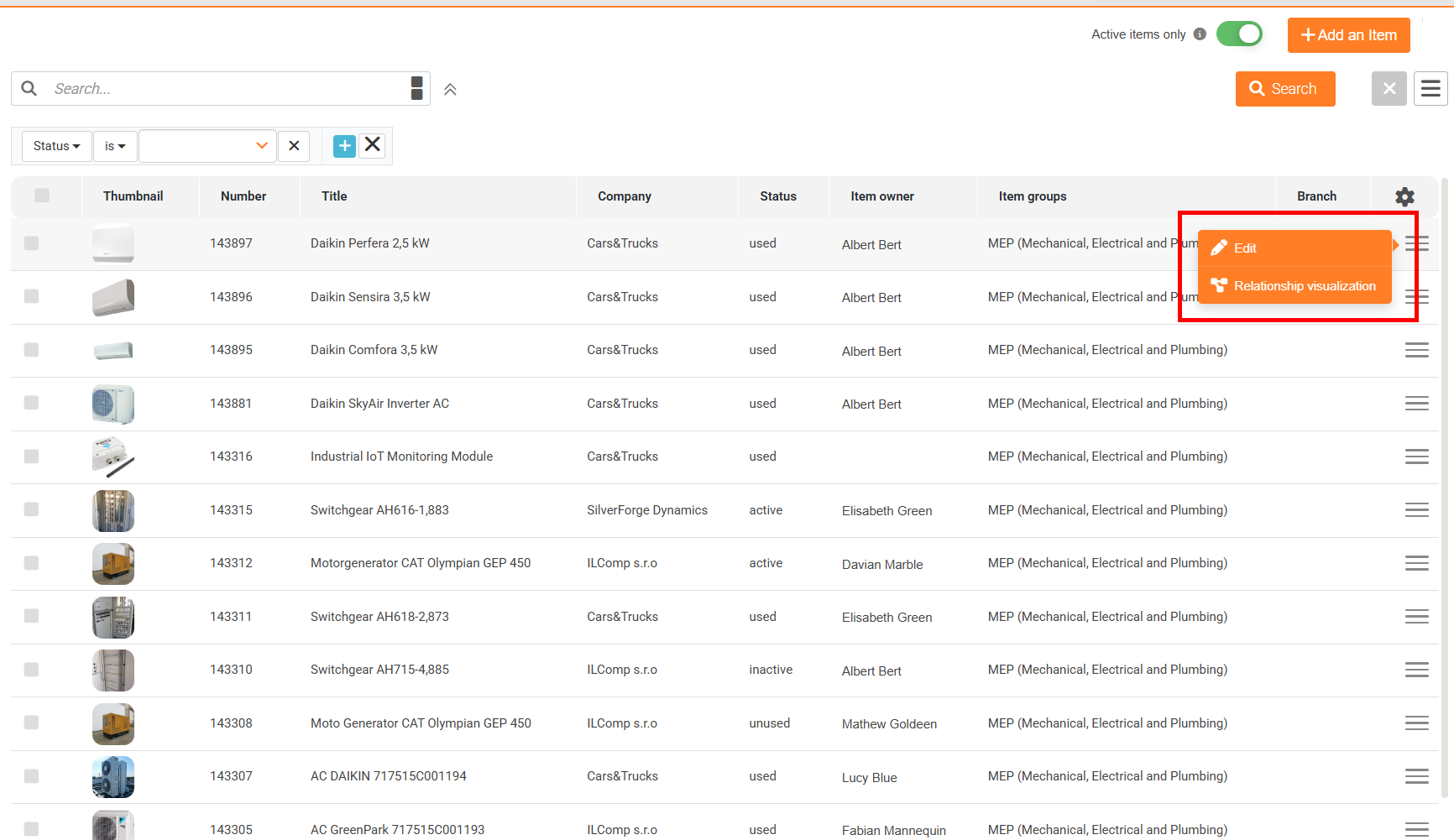
Access to the visualisation of links directly from the list of objects (CI)
You can now open the modal window showing the links between items from the hamburger menu in the list of items.
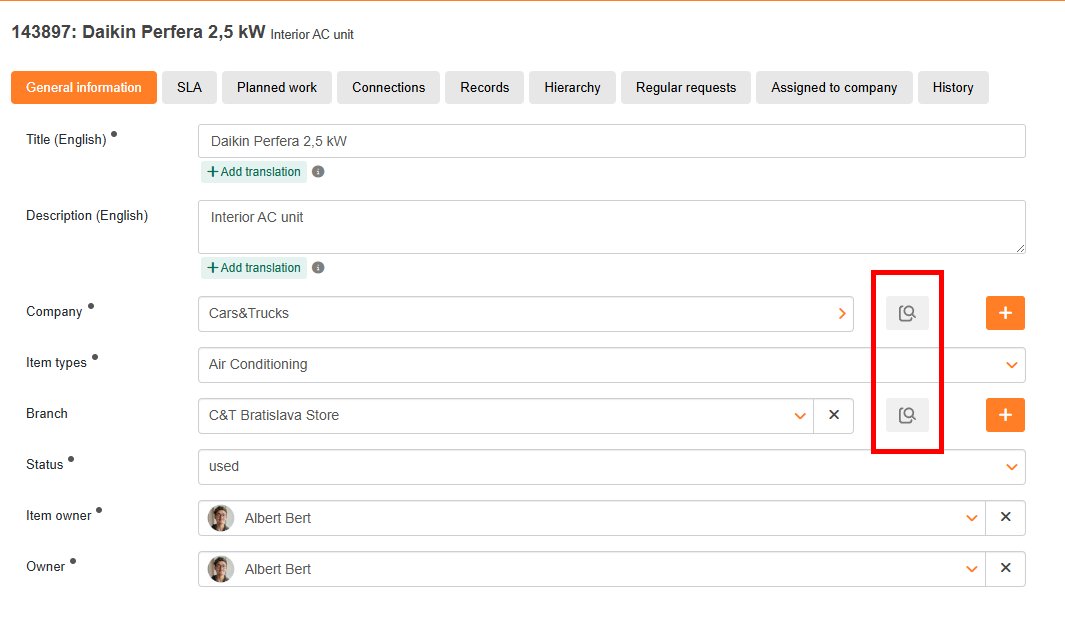
Presentation of company and branch details from an object (CI)
The ‘Company’ and ‘Branch’ fields now feature magnifying glass icons; clicking on them opens a modal window displaying details of the company and the relevant branch
Sync IDs in the CMDB when connected to Oracle can only be edited by an administrator
For CMDB items synchronised with the Oracle database, the Sync ID field is now protected against editing by common users.
Only users with administrator permissions can edit the Sync ID field. For other users, the field will be read-only.
This change prevents an unintended change to the synchronisation identifier, which could have caused the link between CDESK and the Oracle database to be broken. During the next synchronisation, the system could have created a duplicate CMDB entry instead of updating the existing one.
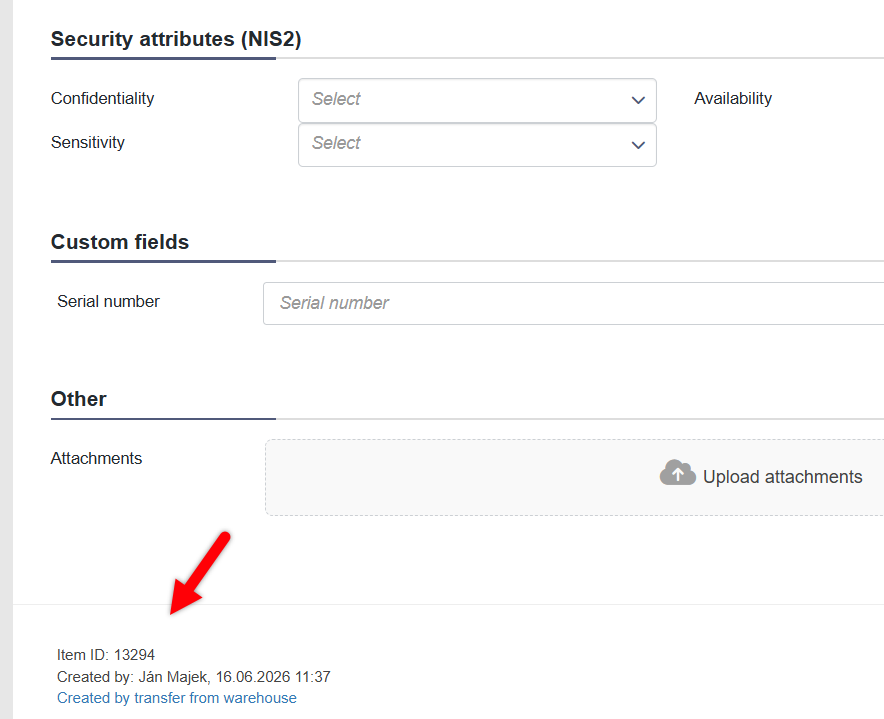
Information added regarding the creation of the object (CI)
In an open CI record, basic details about its creation – the record ID and creation date – are now viewed in the bottom-left corner. It also shows how the record was added to the CMDB:
- When transferring from stock, a message is displayed stating that the item was created by a transfer from stock
- When downloaded from Customer Monitor, it will show the time of creation and that it was created from Customer Monitor
- if the item has been synced with a stock item, this information will also be viewed, along with the date of the sync
The same data is also available in Asset management, where only the CMDB ID was previously visible.
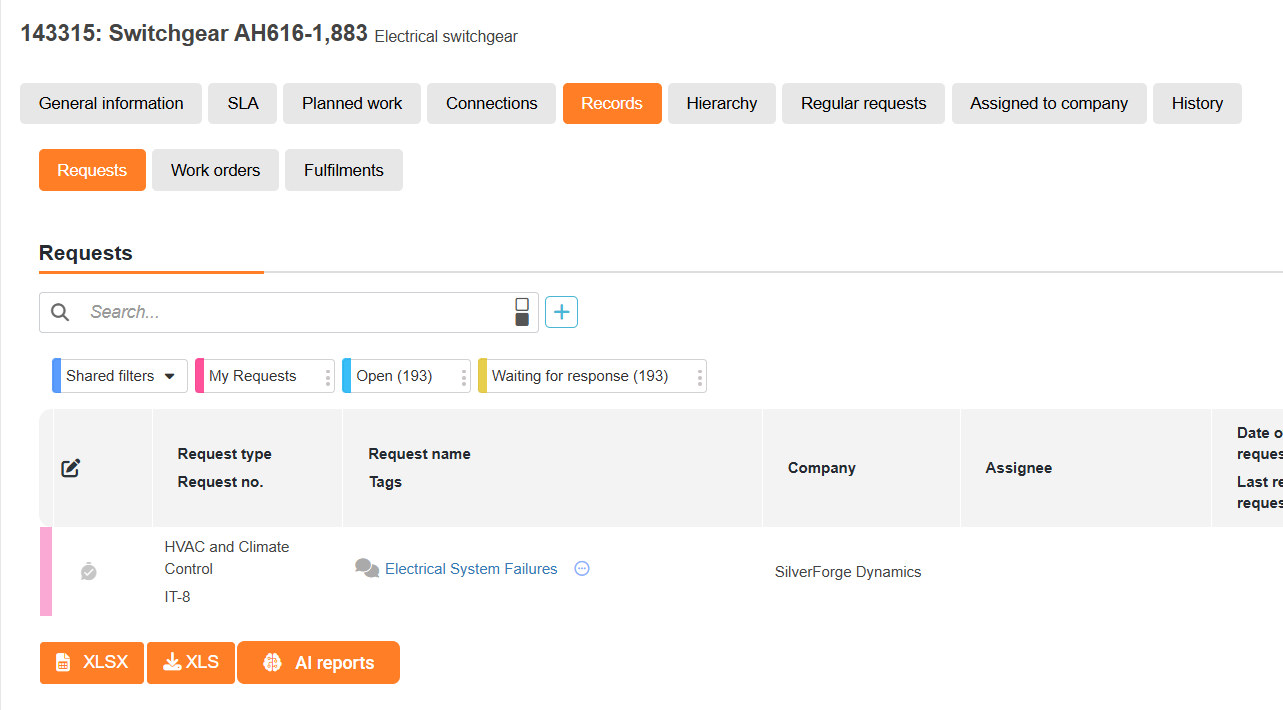
The link to the CI from the request will also be viewed in the CMDB
If a user-defined field of the ‘Link to CI’ type is configured on a request form (either a global form or a request template), the selected CI objects will no longer be linked in a one-way direction only. The request will now also be viewed in the CMDB – on the Records/Requests tab for each CI object selected in this field. If the field allows multiple selections, the request will appear for all selected CI objects.

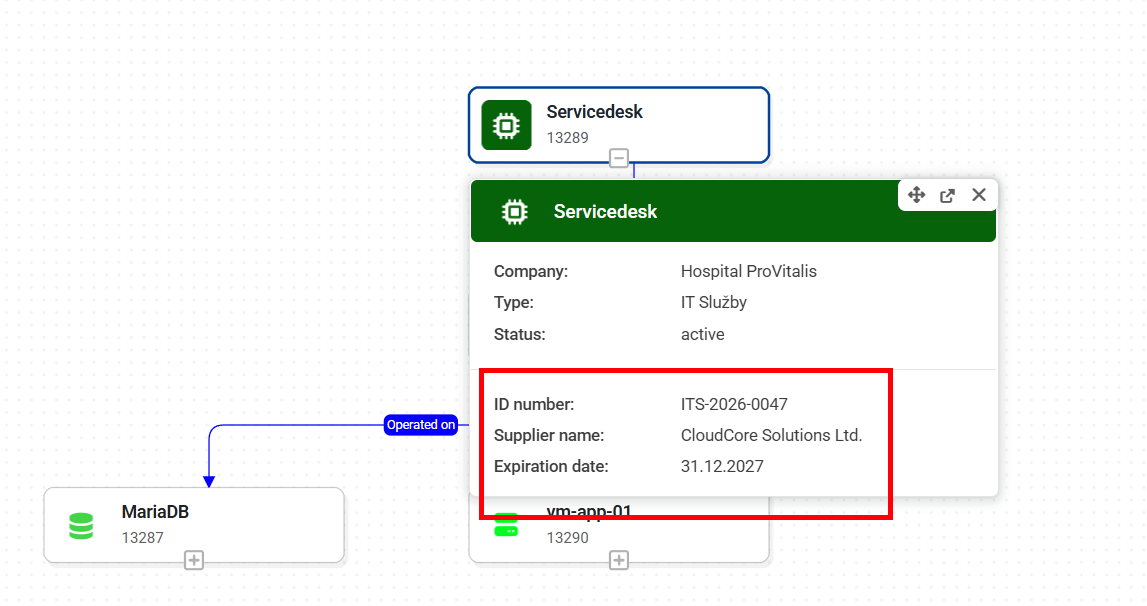
Custom fields from the item type in relationship visualisations
In the item connection scheme, clicking on an item views its basic details, which include the user-defined fields of that type that have been filled in.
Warning: These are custom fields set at item type level, not at individual item level.
Returning a borrowing directly from the CI panel
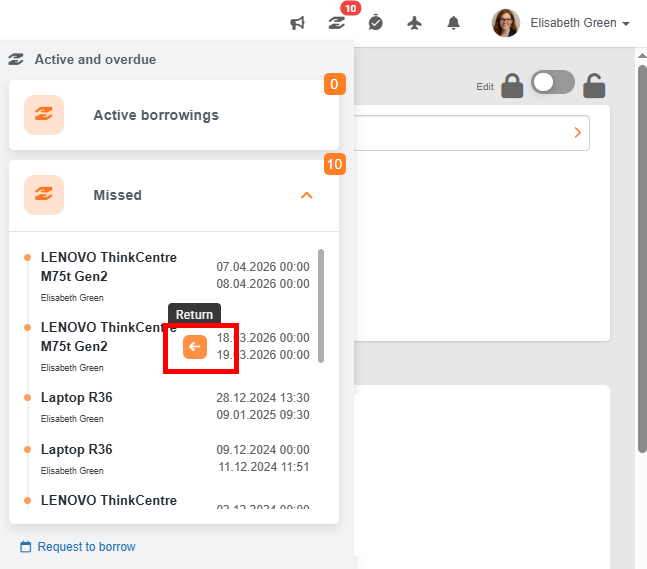
The panel on a specific CI, which views active and overdue borrowings, now also allows users to return items directly. It is therefore no longer necessary to navigate to another part of the system.
When you hover the cursor over a specific borrowing record, a button with a return icon will be viewed. Clicking on it opens a modal window with a form for returning that borrowing. This makes the return process quicker and takes place directly within the context of the equipment the user is currently viewing.
Fulfilments
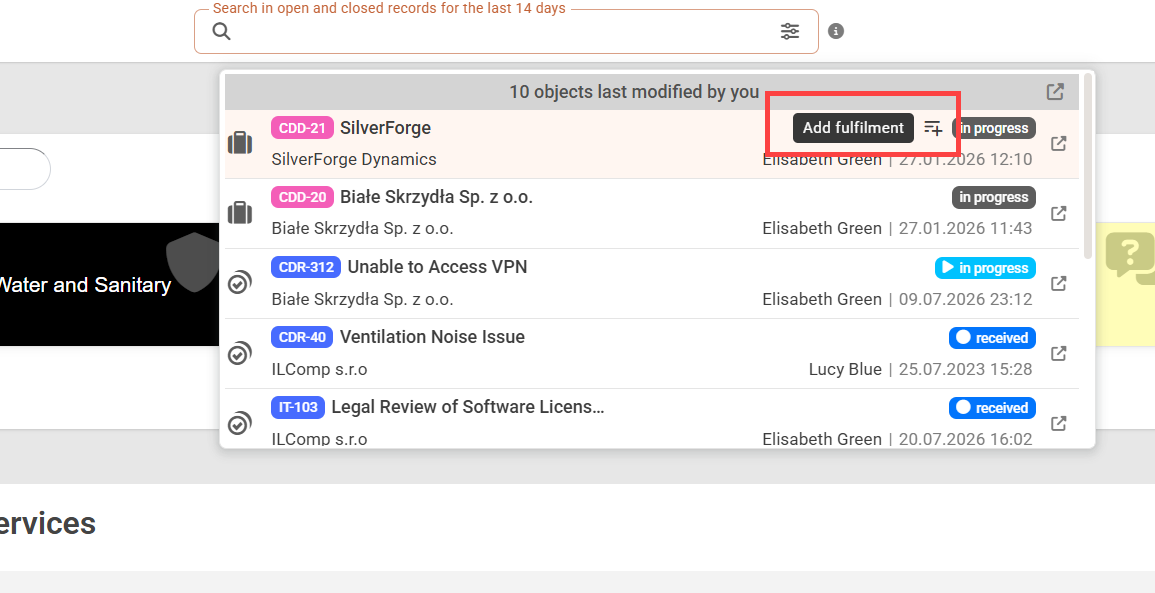
Adding fulfilments to records from the central search
In the Central Search results, you can now create a fulfilment directly for the object found. Simply hover your cursor over the result and click on the ‘Add fulfilment’ icon. A new task form will open with the link to the selected object automatically pre-filled, so there is no need to open its details first.
Invoicing status in the list of fulfilments as a separate column
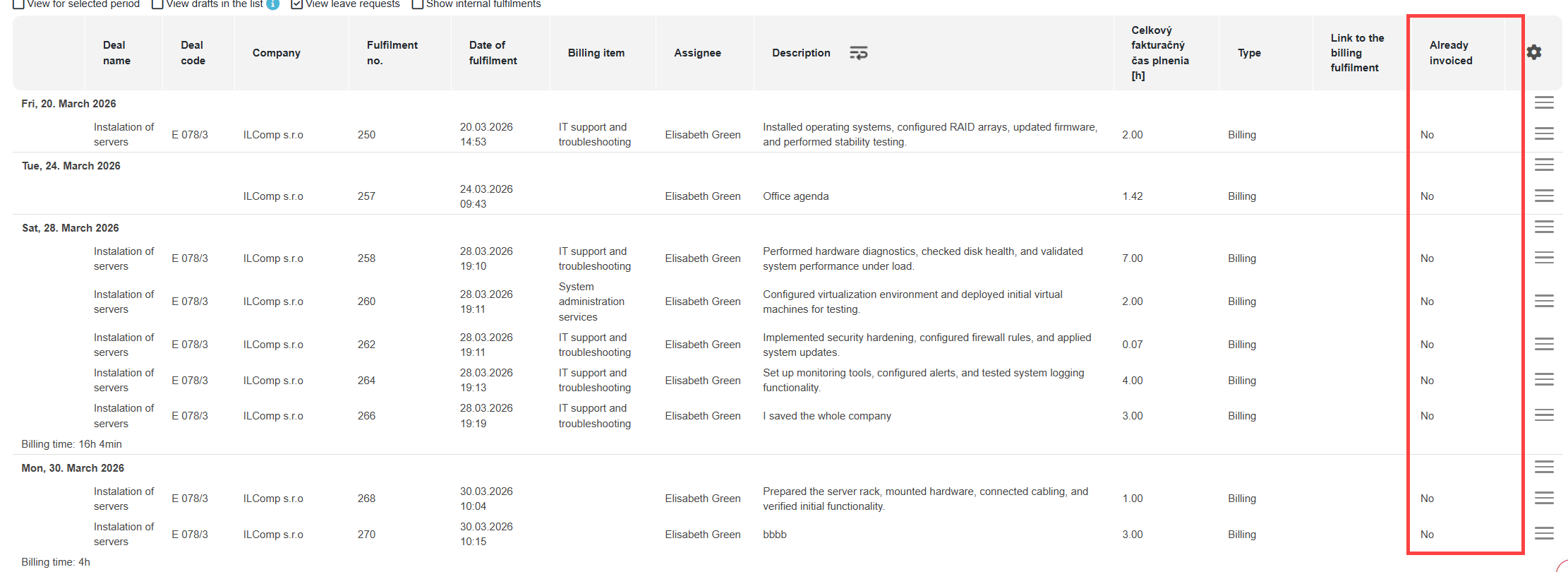
It is now possible to select a transaction as ‘invoiced’ even if the invoicing took place outside CDESK. A separate invoicing status (previously ‘Invoice’) has been added to the list of transactions, with the option to filter by invoiced and uninvoiced transactions. The link to a specific invoice in CDESK remains separate, and where an invoice exists, its number and name are displayed with a link to the details.
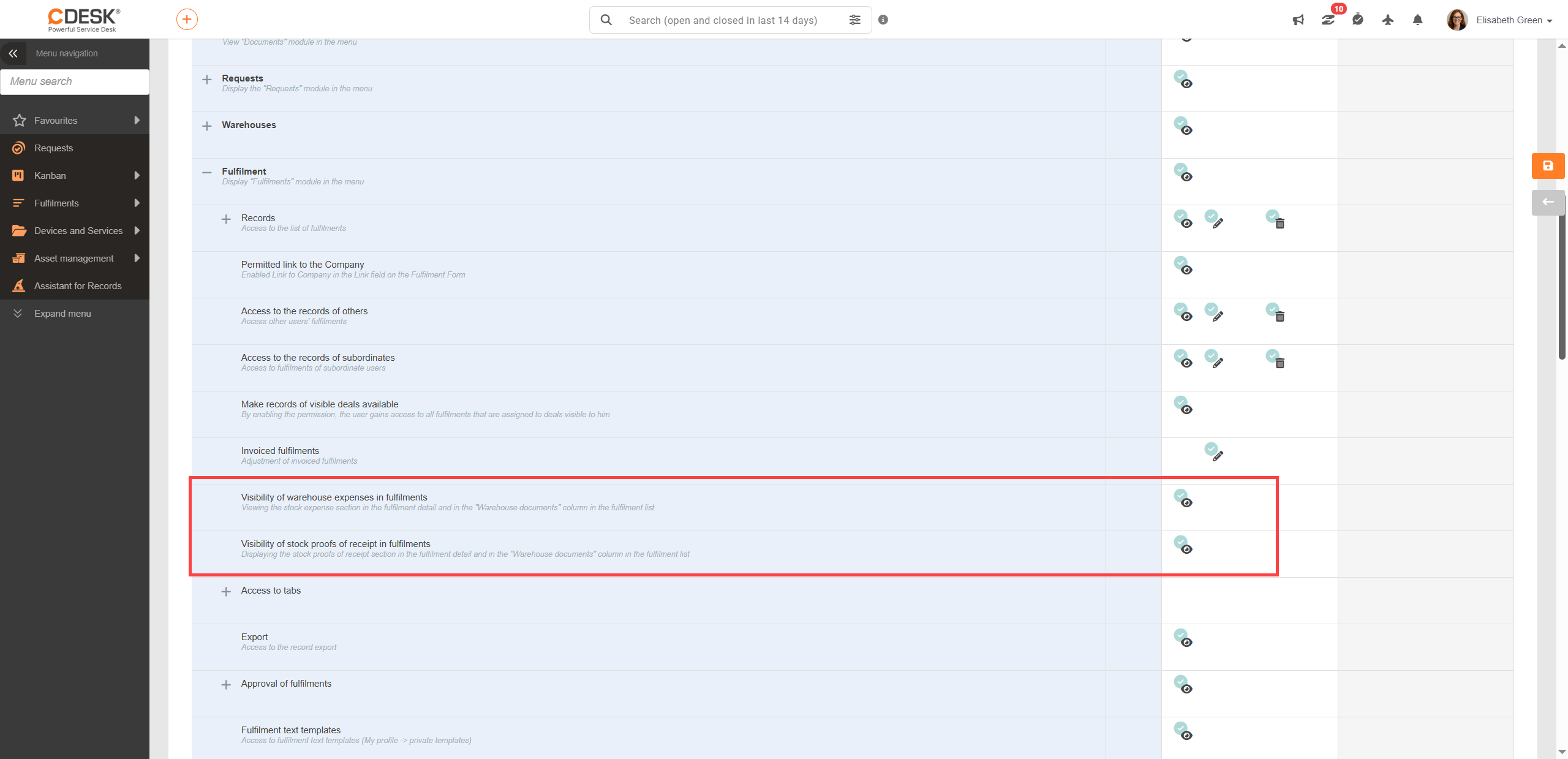
Adding new permissions for the visibility of warehouse documents in fulfilments
Administrators can now set individually whether user groups can view stock issue notes and stock proofs of receipt in fulfilment records. If this permission is disabled, the relevant section in the fulfilment details will be hidden, and the ‘Warehouse documents’ column in the fulfilment list will also be adjusted according to permissions.
Adding customer accounts with an additional licence to the list of assignees when recording fulfilment
If a customer account has authorization to create, edit or delete fulfilments, it will now also be displayed in the list of assignees for fulfilments. Internal assignees can also select customer accounts belonging to companies to which they have access. The change also includes support for searching within the advanced list of assignees.
Address book
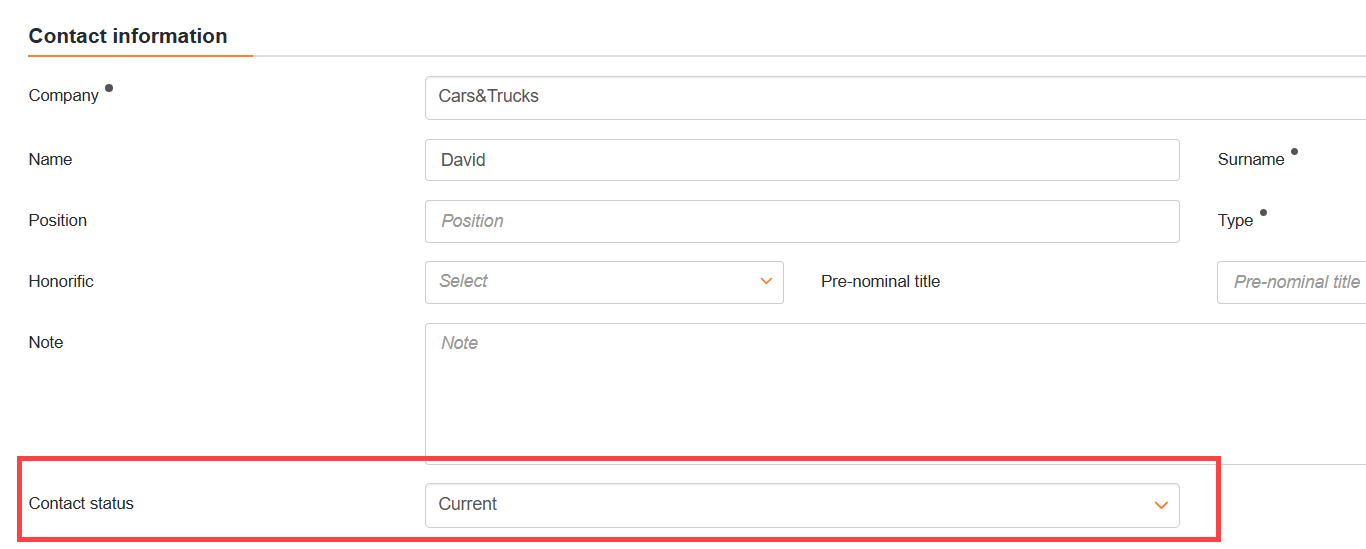
New label for outdated contacts
A ‘Status’ field has been added to the contacts, allowing you to mark a contact as out of date without deleting it from the system. Historical links to requests are retained, whilst only current contacts are suggested when creating new requests. The contact list also supports filtering, sorting and the visual highlighting of out-of-date contacts.
Calendar
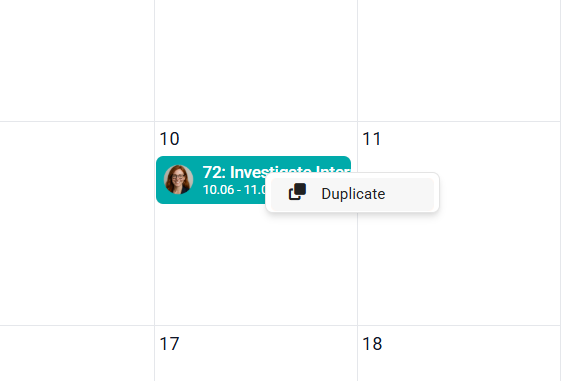
Option to copy tasks
A button for cloning a task has been added to the task preview in the Calendar. When clicked, a new, identical task is pre-filled, allowing the user to edit the details as required. This feature is also available for the Kanban module.
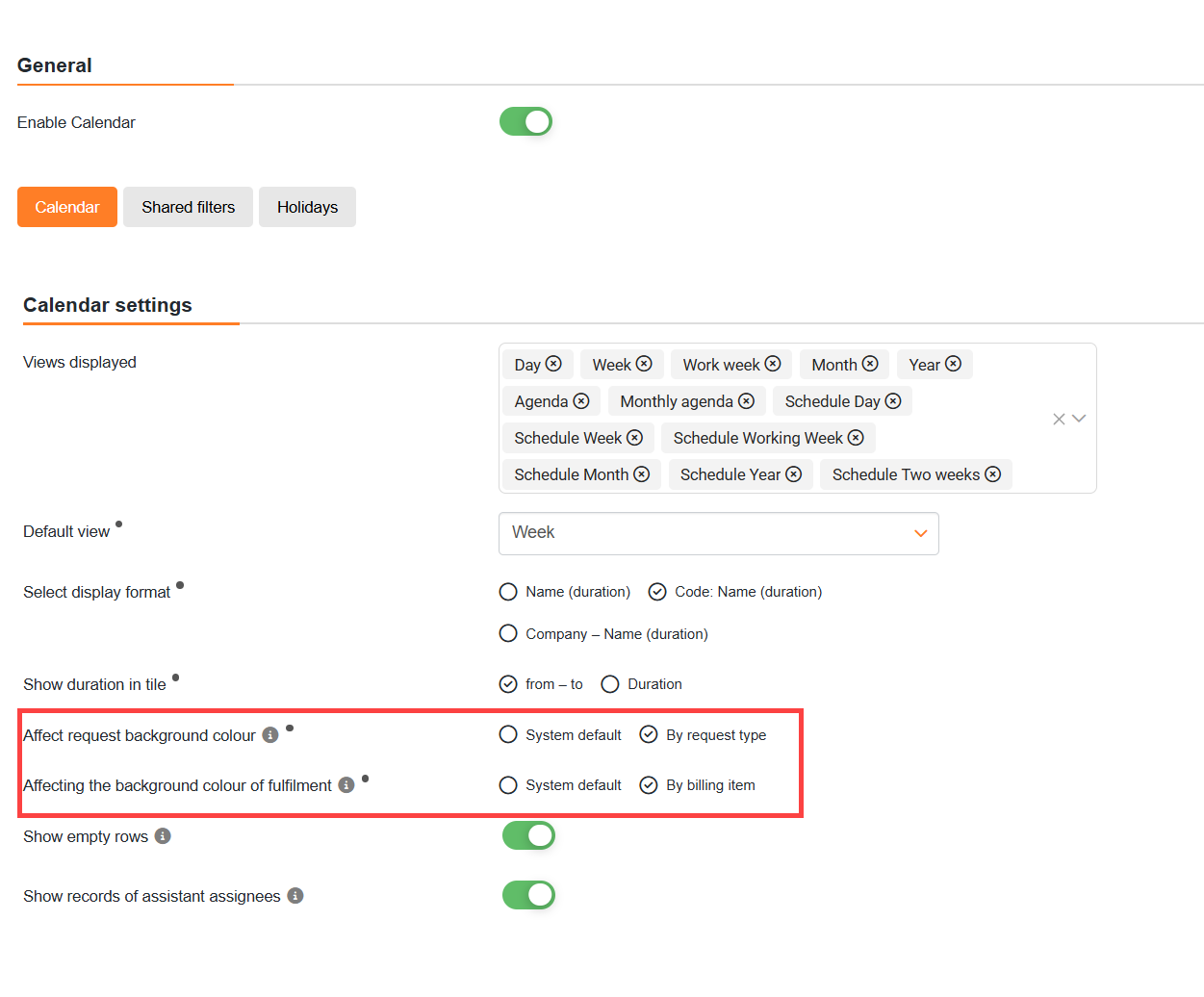
Colour-coding of fulfilments by type of job
Until now, all fulfilments in the Calendar have been the same colour. Users can enable colour-coding by job type in the Calendar settings.
Connectors
New integration with HEXAGON EAM for enterprise environments
CDESK is expanding its capabilities for large enterprises and organisations through integration with the HEXAGON EAM system. This integration ensures the synchronisation of asset objects into the CMDB as configuration items (CIs) and the transfer of requests from CDESK to HEXAGON EAM in the form of deals. The connector also includes mapping of request types and assignees, which allows the synchronisation to be tailored to the customer’s specific environment.
Price List
Option to set the maximum number of carry over hours if the flat rate allowance is not used up
Under the new flat rate service terms, you can now limit the quantity of unused hours carried over and set them to be automatically reset after 12 months. This enables you to better tailor the rules for service usage to your business conditions and prevent the unlimited accumulation of unused time.
General
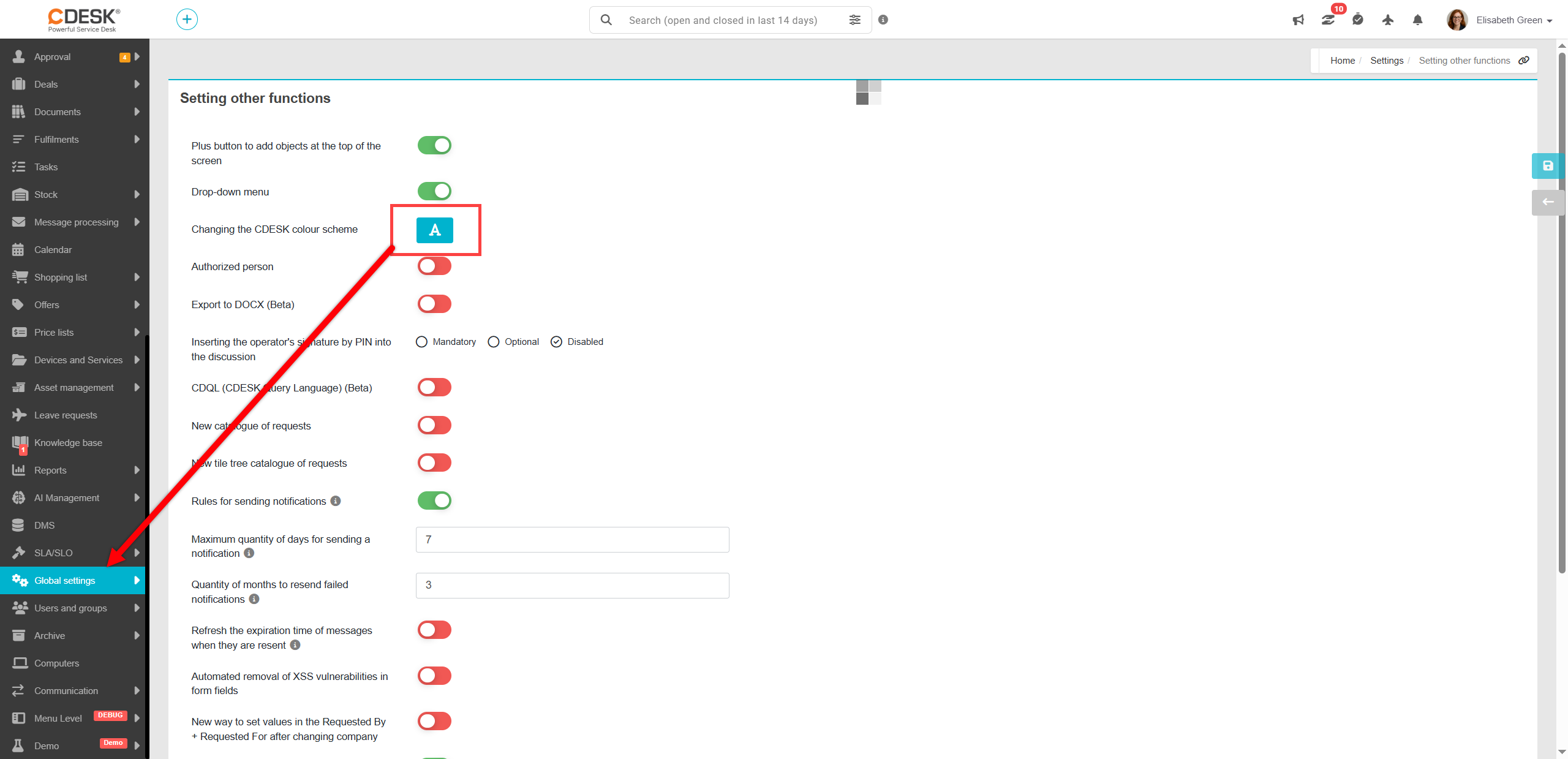
New colour scheme
In the global settings, the administrator can simply select one of the pre-defined colour schemes to change the main colour scheme of the user interface. This update also includes a new red scheme, suitable for organisations wishing to align the look of CDESK with their design manual.