
MESSAGE PROCESSING RULES
Page contents
Management of rules for automatic message processing is available from the main menu under Message processing->Processing rules. If this item is not present in the menu, a user with administrator permissions must enable the Message processing module in Global settings->Message processing, or check whether the user has been granted permissions to use this module in Users and groups->Users.
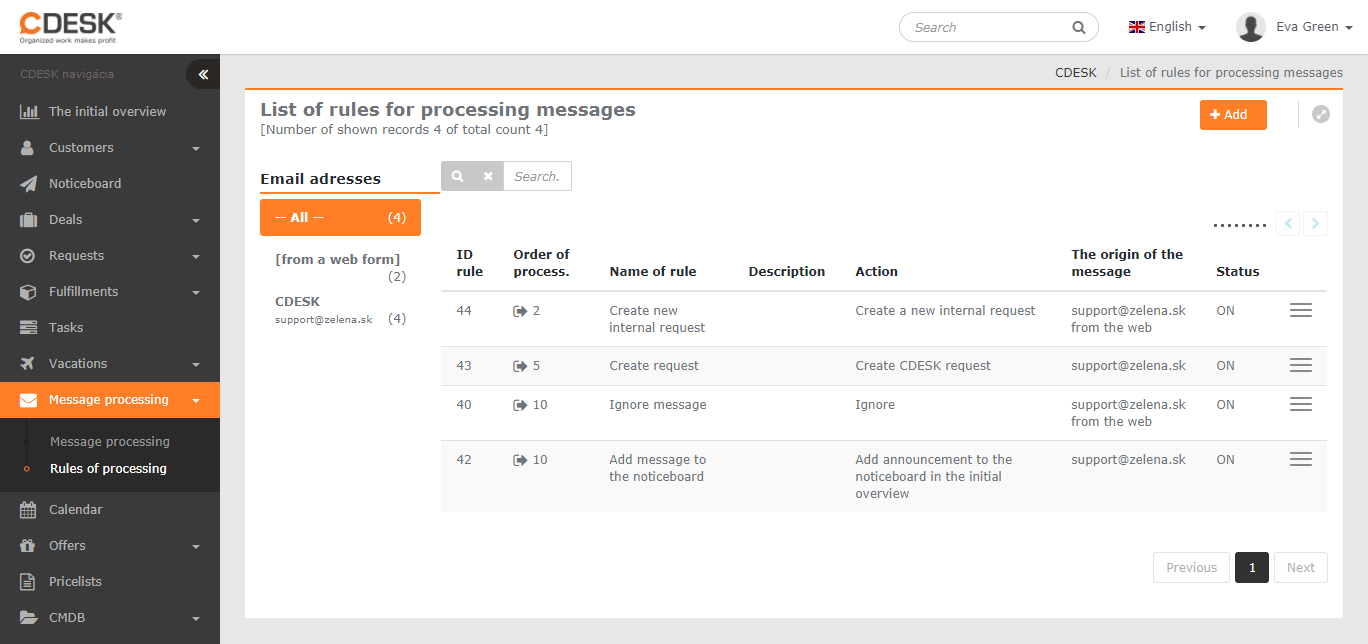
List of rules
The window with messages for processing is divided into two parts. On the left is a list of public email addresses; by selecting them you can display only the rules assigned to specific email addresses. A flag before an email address indicates that it is an address for receiving private messages. The addresses used for receiving messages can be edited in Global settings->Message processing.
On the right is a list of rules, ordered by processing sequence. Disabled rules are shown in a low-contrast grey colour.
Processing order – messages are processed according to their order. If a message meets the conditions of several rules, it is processed according to the one with the lower number. Before the number there is an icon indicating how the rule is applied to messages:
 – the rule is applied to the message only after it has been evaluated whether it is an automatically processed message, for example a discussion on a request. If it is a discussion post, it is processed automatically and the rule is not applied
 – the rule is applied to the message before evaluating whether it is a discussion post. Messages meeting the rule’s conditions will be processed directly according to this rule
 – the rule is applied to the message only after it has been evaluated whether it is an automatically processed message, for example a discussion on a request. If it is a discussion post, it is processed automatically and the rule is not applied
 – the rule is applied to the message before evaluating whether it is a discussion post. Messages meeting the rule’s conditions will be processed directly according to this rule
Rule name – name
Description – a brief description of the rule
Action – messages meeting the rule will be processed according to the specified action
Message origin – the public address assigned to the rule, or from the web, or both at once
Status – On – enabled; Off – rule usage disabled
New rule
A new rule is created by clicking the +Add button in the list of rules. A form opens, divided into sections:
- Basic settings
- Sorting – determining the conditions for processing a message by the rule
- Action – how the message is to be processed
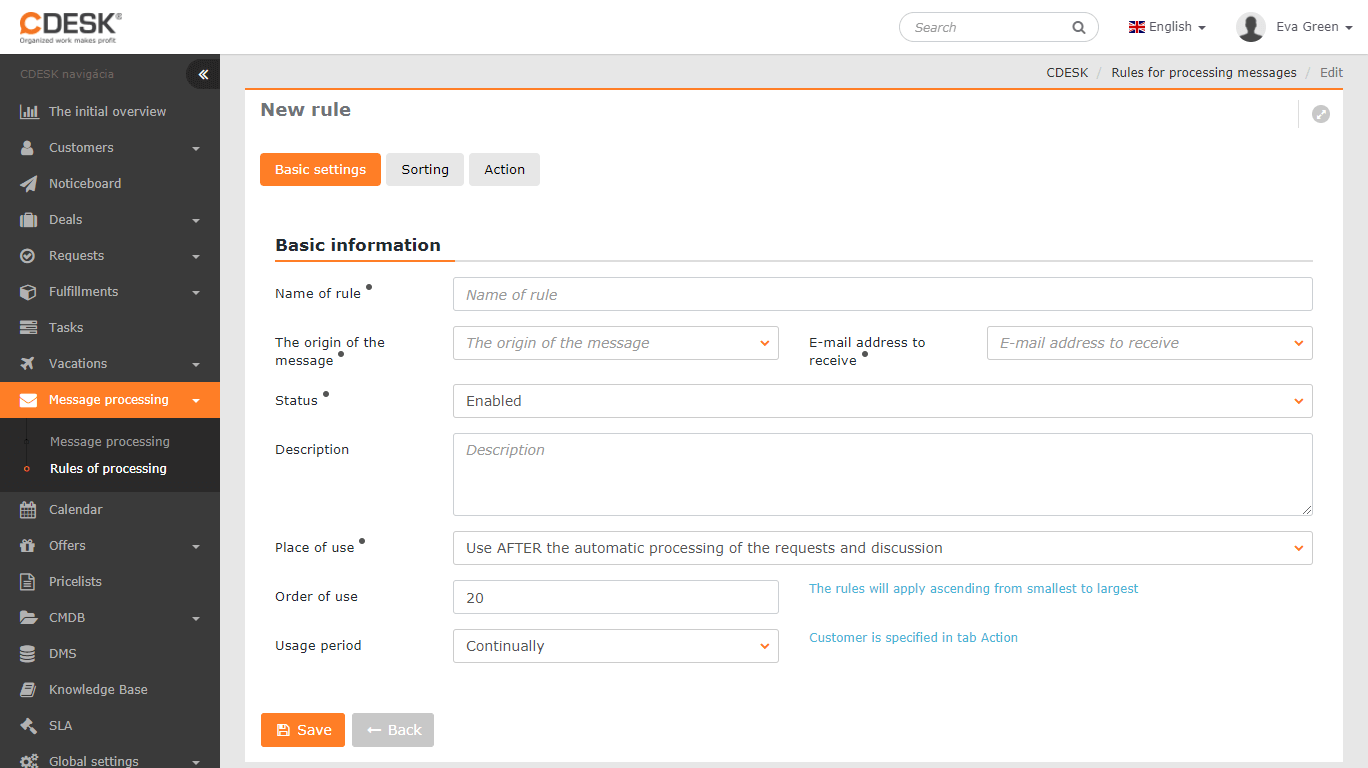
Basic settings
Rule name – a descriptive name for the rule, under which it will be displayed in the list of rules
Message origin – determines from where a message must be sent in order for the rule to be applied to it
- from any source – the rule processes messages sent both from email and from a web form
- from email – the rule processes only messages sent from email
- from a web form – the rule processes only messages sent via a web form
Email address for receiving – select the email address from which received messages are to be processed according to the rule. Each rule can have only one address assigned
Status – Enabled/Disabled rule usage
Description – a brief description of the rule
Place of use – when the Customer Monitor functionality is enabled, it determines when a received message is to be processed:
- Apply AFTER automatic processing into requests and discussion – first the automation checks whether the message was sent from an address registered in Customer Monitor. If so, the automation creates a request directly; if not, the message is processed according to the rule
- Apply BEFORE automatic processing into requests and discussion – the received message is processed directly according to the rule, even if it is sent from an address assigned to a computer
Order of use – in the event that a received message meets the conditions of several rules, the rule with the lower order number is used
Time of use – the option to select whether messages are to be processed continuously, during working hours or outside them. Working hours are defined in the global SLA. More about setting working hours in the article SLA
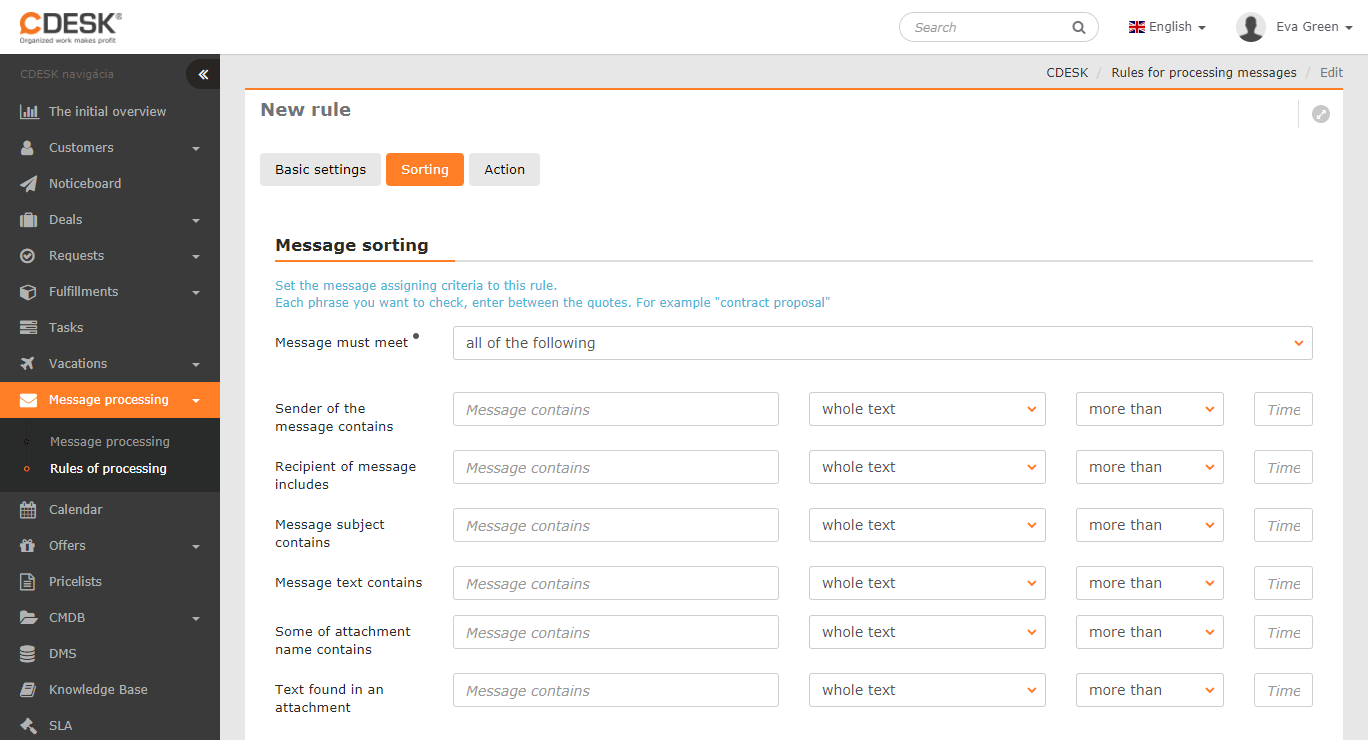
Sorting
The message must meet – select whether all of the conditions listed below must be met, or at least one
The message contains – conditions can be defined according to the occurrence of certain words in the email header (sender, recipient, subject), according to words in the message itself, the name of an attachment, or the text of an attachment
In a single condition you can also search for several expressions. In that case separate them from each other with quotation marks („expression 1“ „expression 2“) and select whether all of the expressions must occur in the text, or at least one of them. In the final step, specify how many times the searched expression must occur in the condition.
If you do not enter any condition, the rule is applied to all messages sent via the selected email or web form. For this reason we recommend setting a high processing order value for a rule without specified conditions – so that it is not also applied to messages that meet a rule with defined conditions.
Action
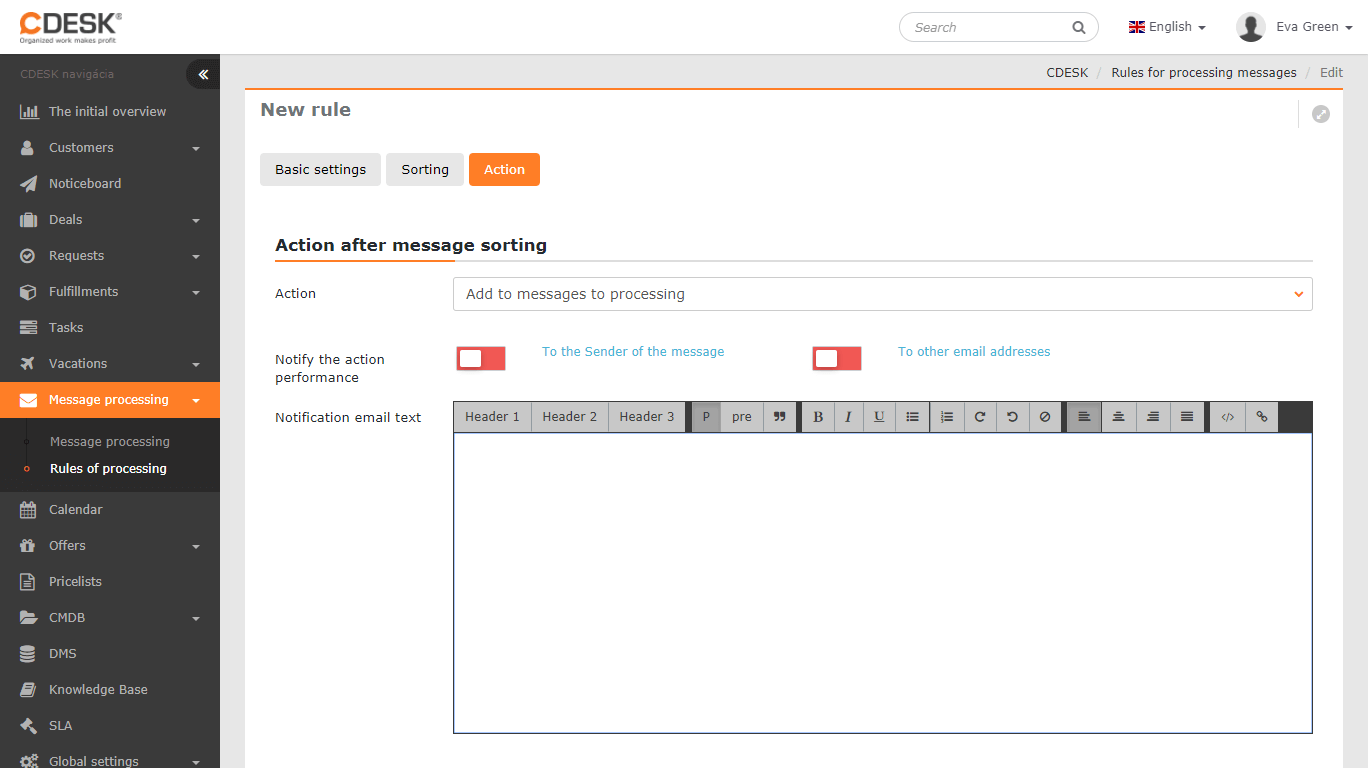
Action – select the way in which the message is to be processed
- Add to messages for processing – messages meeting the rule will be added to the messages for manual processing; they will not be processed automatically. Example of using this action in practice – the message should not be processed automatically, but the sender should be notified that the message has been received into the system
- Create a CDESK request – a new request for the selected customer is created from the message. The meaning of the individual fields of the request form is described in the article Creating a new request
- Create an internal CDESK request – a new request for the selected customer is created from the message, which the customer will not see. The meaning of the individual fields of the request form is described in the article Creating a new request
- Create a task – a new task is created from the message
- Add a notice to the noticeboard – the message is added as a post to the noticeboard for selected assignees
- Ignore – messages meeting the rule will be automatically ignored
Notify of action execution – the sender of the message will be notified of the receipt/processing of the message, with wording according to the text of the notification email
To additional email addresses – the option to add further notification recipients
Notification email text – the wording of the notification with support for text formatting
Ending message processing according to a rule
Ending the processing of new messages according to a selected rule is possible by disabling the rule in the basic settings, with the option to enable it again, or permanently – by deleting the rule (requires the appropriate permissions).